Getting started
From photo to video in three steps: upload reference photos of your property, choose a camera-move template, pick a length (4–30 seconds), and generate. Your first video of up to 10 seconds is free.
Last updated:
Step 1: Create an account
Sign up in the web app with an email address and password, or directly with a passkey. After registration the free tier is available immediately: one video of up to 10 seconds in 720p, with a watermark. No payment details required.
Create account
Step 3 of 3 — sign-in
Ready right after: 1 video (up to 10 s) free.
Step 2: Upload reference media
Upload your own photos (or short video clips) of the property to serve as the template — the reference media. The AI stays close to this material when generating: facade, windows, garden, and surroundings come from your images, not from a stock database.
- 3–10 photos are a good start; more angles produce a more consistent result.
- Use landscape shots in daylight — details in the “Good reference photos” chapter.
- Only upload your own material that you hold the rights to.
Reference media
4 of 3–10 photos · landscape, daylight
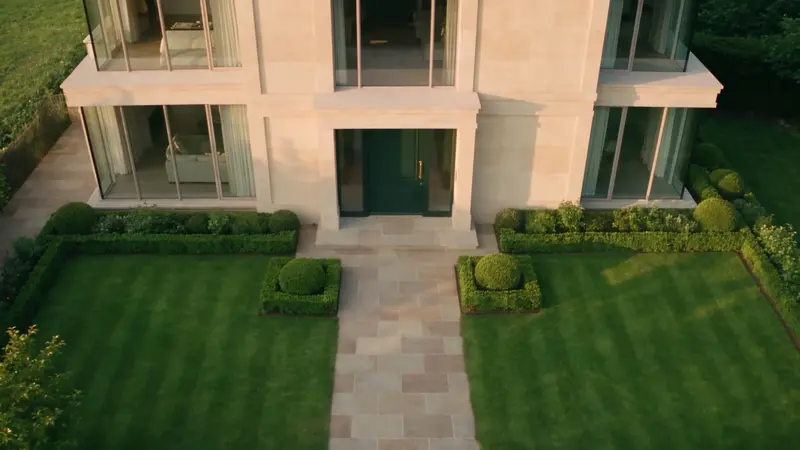
Your own material only · stays yours
Step 3: Choose a template and a length
Pick one of 9 camera-move templates — it defines the camera move, from “Aerial approach” to “Detail pan”. There is deliberately no free-text field at first generation; your own words come in later, when refining. Then choose the video length between 4 and 30 seconds (in 1-second steps; your plan and remaining budget limit the choice) and the format: 16:9, 9:16, 1:1 (21:9 only with Cinemura Premium on the Pro plan).
“Arrival at the entrance” — A glide along the path to the front door — the feeling of arriving. Best for: Entrances, townhouses.
Choose a template
Template
Exactly one template per generation — your own words come in when refining.
Length & format
Length
30 s / max. 30 s
Format
Step 4: Generate and download
When a generation starts, the chosen seconds are deducted from your budget. If it fails technically, they are refunded automatically and in full. You'll find the finished video in your library — paid videos without a watermark in 1080p, at a high delivery bitrate and at no extra charge. Ready to download for your listing, portal, or social media.
Generating
You can close the app — we notify you as soon as the video is ready.
Library
Business · 195/300 s
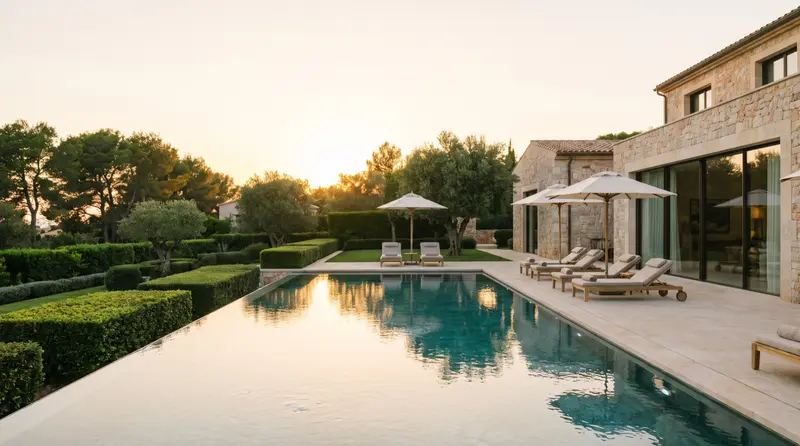
Garden move to the pool terrace
18 s · 16:9 · 1080p
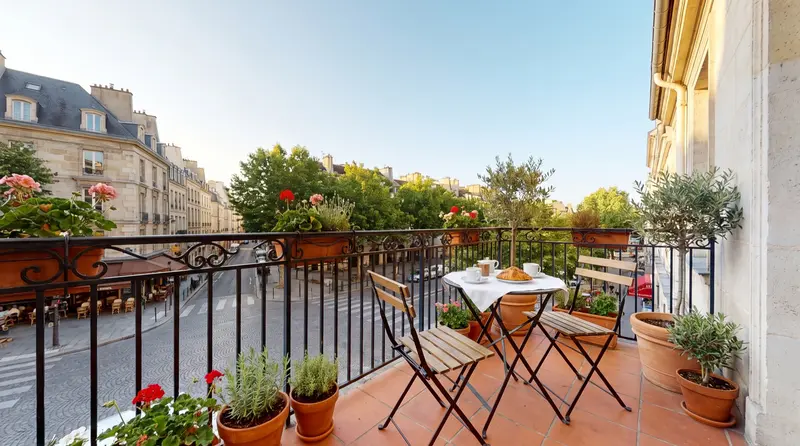
City balcony — social clip
12 s · 9:16 · 1080p
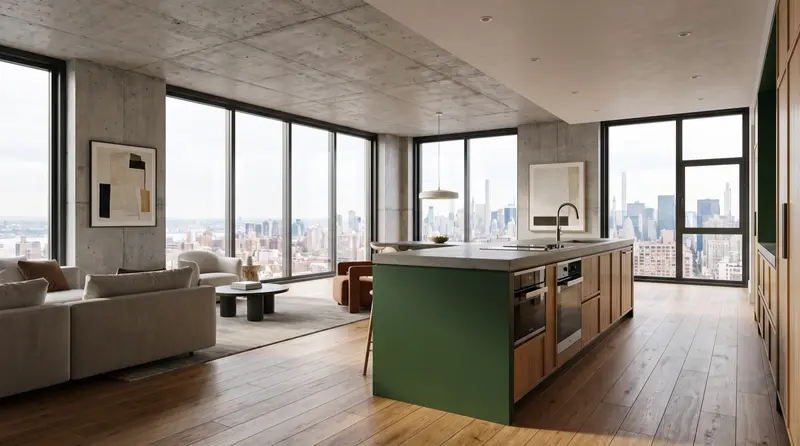
Loft, pan to the kitchen
15 s · 1:1 · 1080p